
If you’ve logged into Seller Central recently to add a new ASIN or extend a variation family, you may have noticed the interface looks different. Amazon shipped a significant overhaul to the Add Products tool — the workflow most sellers use for creating new listings and managing parent-child structures.
The old flow was a single-page form: search for an existing product to match against, fill in details, submit. The new interface runs as three distinct panels with instant variation creation and AI-assisted attribute pre-fill built in. Here’s what each panel does, and where the new tool helps versus where you still need to be careful.
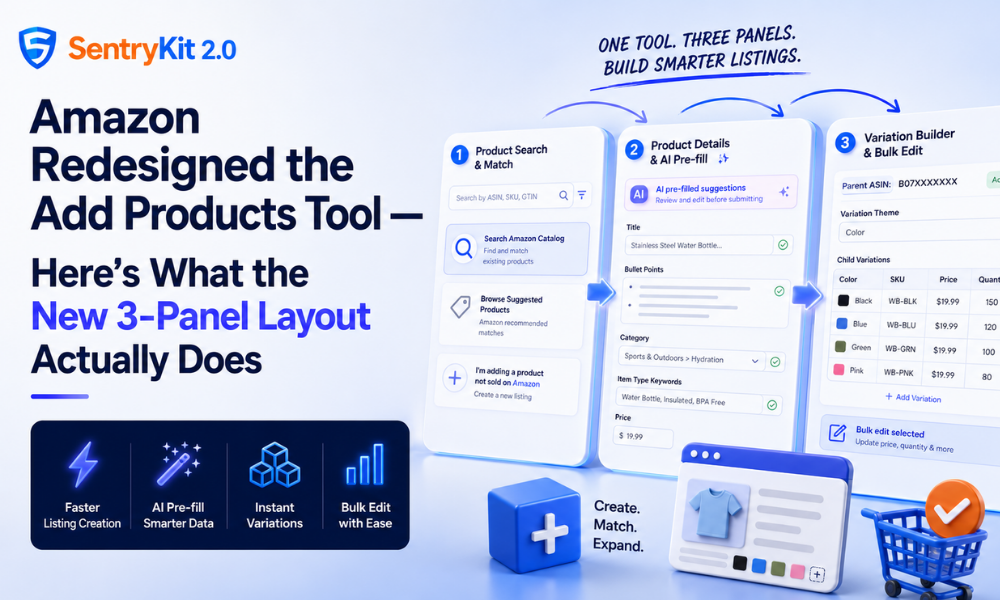
The redesigned Add Products tool runs as a three-column interface.
Panel 1 — Product search and match. This is where you search for an existing ASIN to match against, browse a suggested product from Amazon’s catalog, or indicate you’re creating something new. The matching decision is still the most consequential step in the flow — matching to an existing ASIN means inheriting its listing structure; creating new means you control it. The UI is cleaner, and category suggestions surface more prominently.
Panel 2 — Product detail entry. The main input panel where you fill in attributes, title, description, and pricing. The key change here is AI pre-fill: Amazon’s system now auto-populates suggested values for title structure, bullet points, category, and some item-type keywords based on your GTIN, barcode, or the matched existing ASIN.
Panel 3 — Variation builder. This is the new panel that didn’t meaningfully exist in the old flow. If your product has variations — size, color, style — you can now define the variation structure, add child ASINs, and assign attributes without leaving the tool or navigating to a separate listing management page.
Amazon’s Seller Central documentation on variation relationships and themes lists which variation types are supported in each category and which child-ASIN attributes are required before submission — worth checking before building a new variation family for the first time.
The variation builder in Panel 3 is the most meaningful change for private label sellers managing product families.
In the old workflow, adding a child variation to an existing parent was a multi-step process: navigate to Manage Inventory, find the parent, use a separate edit flow, or submit a flat file for anything complex. In the redesigned tool, you select the parent ASIN from Panel 1 and the variation builder in Panel 3 loads automatically with the existing variation structure pre-populated. A private label seller adding four new color variants to an existing parent ASIN can now build the full variation structure — parent and all children — in a single session.
A few things to know: child ASINs inherit several attributes from the parent (brand, category, some item-type fields) — review what’s inherited before submitting. Image assignment for child ASINs still needs to happen separately after creation; the variation builder doesn’t let you upload child-specific images during the initial setup. Adding variations to an existing parent with active sales and reviews works without interrupting the live listing.
For sellers managing larger variation families, Helium 10’s listing strategy resources cover common variation structure errors that lead to parent-child suppression — problems that are easier to prevent at creation time than to fix after child ASINs have accumulated reviews and sales history.
The AI pre-fill in Panel 2 pulls suggestions from three sources: your product’s GTIN or UPC barcode data (if it matches something in the catalog), the selected category, and the matched existing ASIN’s listing data.
Where AI pre-fill is useful: Commodity and standard products — cleaning supplies, basic consumables, generic accessories — where the pre-filled title structure and bullet suggestions are generally accurate. Products that map cleanly to existing ASINs.
Where to override it: Private label products, where your brand positioning and differentiating claims won’t match what Amazon’s AI suggests from category defaults. Non-standard categories or niche items where Amazon’s catalog doesn’t have good reference data. Any title that would exceed the 75-character title limit taking effect July 27 — the AI pre-fill doesn’t enforce this cap at suggestion time, so you may receive a pre-filled title that would be auto-truncated after submission.
The general rule: use AI pre-fill as a starting point, not a finished answer. Review every pre-filled field before submitting.
Within a variation family, you can now update price and quantity for multiple child ASINs simultaneously from Panel 3, without exporting to the inventory spreadsheet tool.
What’s editable in bulk via the tool: price, quantity, and select standard attributes that apply uniformly across children.
What still requires a flat file: custom attributes, image changes across multiple child ASINs, attributes that differ between children, and any field requiring item-type-specific inputs not exposed in the standard panel.
For sellers managing 20 or more child ASINs in a single variation family, this is a useful incremental improvement. For full catalog operations at scale, flat file uploads via Seller Central’s inventory file templates remain the more reliable approach.
The Add Products tool redesign makes listing creation and variation management faster. It doesn’t change what happens to your listing after it’s submitted.
Once an ASIN is live, Amazon’s systems can modify your title, bullets, or category — often without notification. The ASIN deactivation rules Amazon introduced in 2026 target policy violations in catalog construction, not post-submission content changes. And the AI catalog authorship changes rolling out mean your listing content as submitted may not be what’s showing to buyers.
The new tool makes it easier to build a catalog correctly. Knowing what happens to it afterward is a separate visibility requirement.
For a wider view of how Amazon’s catalog management systems are evolving, Marketplace Pulse tracks structural changes to the Amazon seller experience — including how listing attribution and content-modification systems have shifted independently of the tools sellers use to create listings.
In the redesigned Add Products tool, search for your existing parent ASIN in Panel 1. Once selected, Panel 3 (the variation builder) loads with the existing variation structure pre-populated. Select the variation type, add the new child’s distinguishing attributes, and confirm. The child ASIN is created and linked to the parent without navigating away or using a flat file for standard variation types.
Limited bulk editing is available. You can update price and quantity for multiple child ASINs simultaneously within a variation family using Panel 3. For custom attributes, image changes at scale, or item-type-specific fields, a flat file upload via the Seller Central inventory template is still required.
No — AI pre-fill suggests values during listing creation, which you review before submitting. It’s not the same as Amazon’s post-submission modification systems like Enhance My Listing or Project Starfish, which can change content on existing live listings. Pre-fill only applies at the point of creation in the Add Products tool.
The tool supports most standard product categories. Some category-specific requirements — hazmat, consumables requiring compliance documentation, certain regulated products — involve additional steps outside the standard three-panel flow. Amazon’s category-specific listing requirements cover what applies to your product type before you start a new listing.
Matching to the wrong ASIN means your product inherits that listing’s structure, category, and some attributes. If you realise the error after submission, you’ll need to open a case with Seller Support to correct the match — it’s not self-service. The safest practice: verify the matched ASIN’s category and variation structure before confirming in Panel 1. It’s the most consequential decision in the flow and the hardest to undo.
Yes. Flat file uploads remain available and are still the recommended approach for bulk catalog operations, custom attributes, image changes across multiple child ASINs, and any field not exposed in the standard panels. The Add Products tool redesign gives you a faster option for standard listing creation and variation management — it doesn’t replace Seller Central’s inventory templates for complex catalog work.

Nisha Shetty · Marketing Manager, SentryKit
Nisha is a marketing manager and former Amazon seller who writes about e-commerce growth, consumer behavior, and digital retail trends.